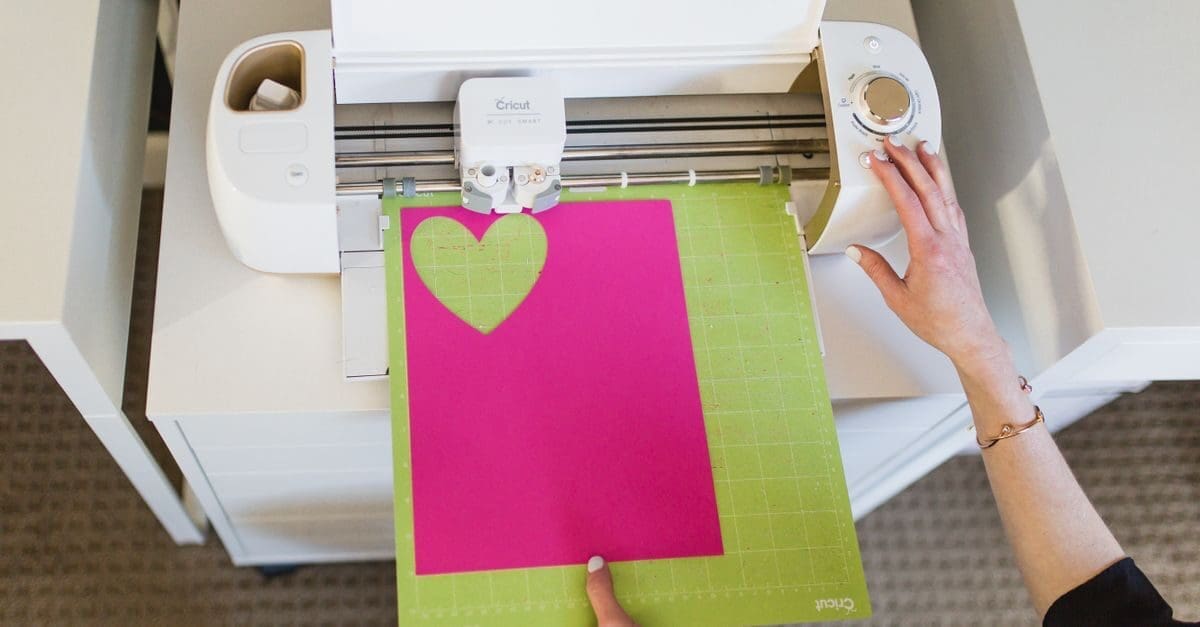
What to Look for in a Cricut Machine
Cutting force determines which materials a machine can handle, and it is the specification that separates paper-and-vinyl work from leather and basswood. Maximum material width and length set the size of projects you can tackle without piecing. Tool compatibility decides whether the machine scores, engraves, and writes or only cuts. Software requirements deserve attention, since the design environment shapes the whole workflow.
Cutting Force and Material Range
Entry-level machines apply enough force for vinyl, cardstock, iron-on, and thin fabrics, which covers most common projects. Heavier materials such as leather, chipboard, and thin wood need substantially more force.
Check the published compatible materials list rather than assuming. Attempting dense materials on an underpowered machine produces incomplete cuts and wears the blade quickly.
Material Width, Length, and Mat Sizes
Most machines accept 12-inch wide material, with some handling wider rolls. Maximum cut length varies from around 12 inches on a mat to several feet with matless feeding.
Mat size affects your project planning and your consumable costs. A larger mat lets you nest more shapes per cut, which reduces material waste on repeated designs.
Tool Compatibility and Accessories
Beyond the standard blade, machines accept scoring wheels, pens, deep-point blades, rotary blades for fabric, engraving tips, and foil tools. Which of these a given machine supports varies considerably.
Dual carriages let the machine switch between two tools in one pass, such as drawing and cutting without stopping. That saves significant time on projects combining both operations.
Matless Feeding and Roll Handling
Machines that feed material without a mat handle long continuous cuts, which suits banners and large decals. They require smart material designed for that feeding system.
Roll holders keep material aligned during long cuts and prevent the skew that ruins a two-foot decal. Whether one is included or costs extra is worth checking.
Software, Design Workflow, and Subscriptions
The design application is where most of your time goes, so its capability matters as much as the hardware. Check whether it runs offline or requires a constant connection.
Subscription tiers often gate image libraries, fonts, and certain features. Confirm what you can do without a subscription, since the practical cost of ownership depends on it.
Workspace, Noise, and Consumables
These machines need clearance in front and behind for the mat to travel, typically the machine depth again on each side. A shelf that fits the footprint may still not allow operation.
Blades, mats, and pens are ongoing costs, and mat tackiness declines with use. Budget for replacement mats, since a mat that no longer grips causes material to shift mid-cut.
What to Check Before You Buy
- Match cutting force to the heaviest material you plan to use.
- Check the published compatible materials list before buying.
- Confirm the maximum material width and cut length.
- Verify which tools and blades the machine accepts.
- Look for a dual carriage if you combine drawing and cutting.
- Check whether matless feeding needs proprietary material.
- Review what the software allows without a subscription.
- Allow clearance in front and behind for mat travel.
How to Choose a Cricut Machine
List the materials you actually intend to cut, because force requirements narrow the options faster than any other factor.
- Write down the materials and thicknesses you plan to work with.
- Check each candidate’s compatible materials list against that.
- Confirm the maximum width and length suit your project sizes.
- Compare tool compatibility for scoring, drawing, and engraving.
- Review software capability and subscription requirements.
- Measure the workspace including clearance for mat travel.
Ready to shop? Browse our full list of Cricut Machines to compare current options and prices.