
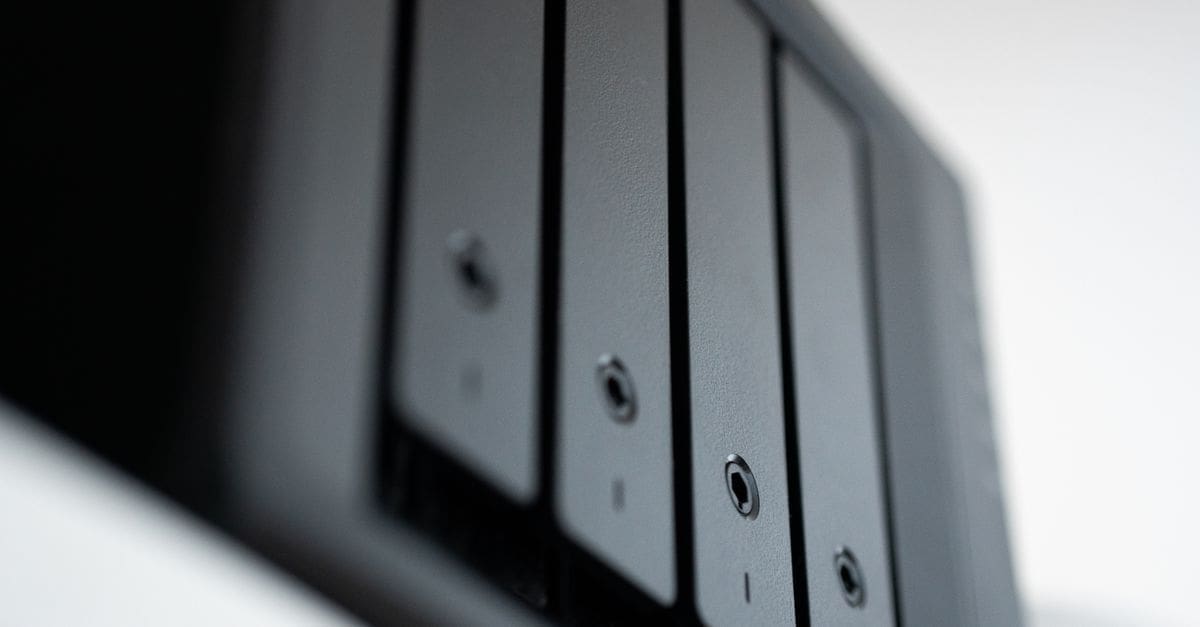
How to Choose a NAS Storage Device
Keeping a growing pile of photos, backups, and media reachable from every device in the house comes down to how many drive bays a unit offers and how much work its processor can shoulder. A two-bay box handles a household mirror, while four bays and up open the door to larger arrays and room to expand. The chip and memory decide whether streaming, syncing, and running apps stay smooth under load. Settling on capacity, redundancy, and connection speed early keeps the rest of the decision straightforward.
Drive Bays and Capacity Planning
The bay count sets your ceiling, since each bay holds one drive and total usable space depends on how those drives are pooled. A two-bay model mirrors a single disk for safety, while four or more bays allow parity arrays that survive a drive failure without losing data.
Plan for growth rather than today’s files, because migrating to a larger chassis later means copying everything across. Leaving a spare bay or choosing a model that supports expansion units keeps future upgrades a matter of adding disks instead of replacing the whole unit.
RAID Levels and Redundancy
RAID arrangements trade capacity for protection, and the level you pick shapes how much space you keep and how many drives can fail. A mirror duplicates data across two disks, parity spreads it so one disk can die without loss, and dual parity tolerates two failures at once.
Redundancy is not a backup, so pairing the array with an offsite or cloud copy guards against theft, fire, or accidental deletion. Choosing a RAID level that matches how critical the data is keeps the balance between usable room and peace of mind sensible.
Processor, Memory, and Performance
The onboard chip determines how the unit copes with several tasks at once, from serving files to transcoding video for a tablet. A dual-core processor suits basic storage and backup, while a quad-core with hardware transcoding handles media streaming to multiple screens.
Memory matters just as much when running containerized apps, virtual machines, or many simultaneous users. Models with upgradeable RAM let you add headroom as your workload grows, avoiding sluggish response when the cache fills during heavy transfers.
Network Speed and Connectivity
A single gigabit port caps transfers around a hundred megabytes a second, which a fast array can easily outrun, so link aggregation or a 2.5-gigabit port removes that bottleneck. Homes moving large video files feel the difference when the network keeps pace with the disks.
Extra ports and slots extend what the box can do. USB connections attach external drives for quick expansion or one-touch backups, and an M.2 slot for a solid-state cache speeds up frequently accessed files without replacing the main disks.
Software, Apps, and File Access
The operating system baked into the unit shapes daily use more than the hardware once files are flowing. A mature app ecosystem adds photo indexing, media servers, surveillance recording, and remote access without extra boxes cluttering the shelf.
Remote reach turns local storage into a private cloud, letting you pull a file from a phone away from home. Look for mobile apps, secure remote login, and clear permission controls so household members see only the folders meant for them.
Noise, Power, and Placement
A drive array runs around the clock, so fan noise and heat decide whether it belongs in an office or a closet. Larger chassis with quieter fans and good airflow keep temperatures down, while a compact unit tucked on a shelf may hum enough to notice in a quiet room.
Power draw adds up over a year of constant operation, and features like scheduled sleep or drive spin-down trim the bill. Confirm the unit fits the spot you have in mind, since deeper models need clearance for cables and ventilation behind them.
What to Check Before You Buy
- Count how many drive bays you need now and leave room to expand later.
- Pick a RAID level that balances usable capacity against how many drives can fail.
- Match the processor to your workload, choosing quad-core for media transcoding.
- Confirm the memory is sufficient or upgradeable for apps and many users.
- Look for 2.5-gigabit networking or link aggregation to avoid transfer bottlenecks.
- Check for USB ports and an M.2 cache slot for expansion and speed.
- Review the software ecosystem for backup, media, and secure remote access.
- Consider fan noise, heat, and physical size for where the unit will sit.
How to Choose a NAS Storage Device
Starting from what you store and who needs it keeps the bay and performance choices practical.
- List the data you want centralized, from backups to photos to media.
- Estimate total capacity today and roughly double it for headroom.
- Choose a bay count and RAID level that give that space with redundancy.
- Match the processor and memory to streaming, apps, or multi-user demands.
- Confirm network speed and ports keep pace with your drives and devices.
- Verify the software offers the backup and remote access you rely on.
Ready to shop? Browse our full list of NAS Storage Devices to compare current options and prices.


