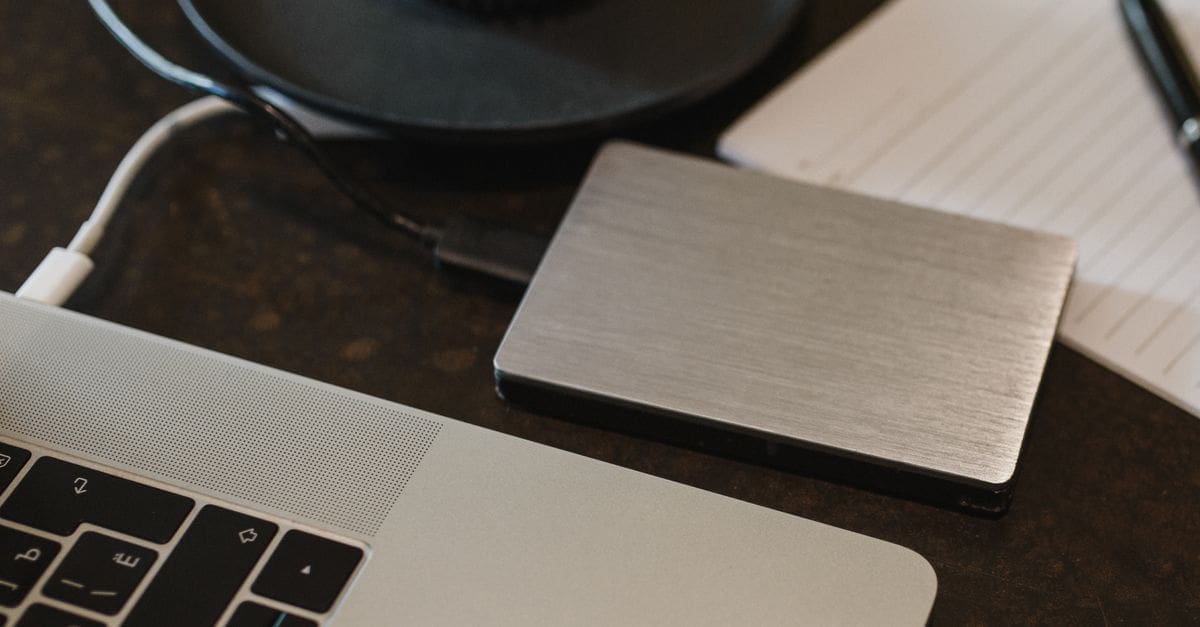
What to Know Before Buying an External Hard Drive
External hard drives split into two fundamentally different technologies — spinning hard disk drives (HDD) and solid-state drives (SSD) — and choosing between them means understanding the tradeoffs in speed, durability, and cost. Beyond that choice, interface type (USB 3.0, USB-C, Thunderbolt), storage capacity, and whether the drive is bus-powered or requires a power adapter affect how the drive fits into your workflow. The right external drive depends on whether you’re archiving large files, backing up continuously, or working directly from the drive.
HDD vs. SSD: Speed, Durability, and Cost
Spinning hard disk drives (HDD) offer high capacity at low cost — 2–8 TB drives in the $60–150 range are standard. Transfer speeds top out around 100–130 MB/s, which is sufficient for backup and archiving but noticeably slow when working directly from the drive with large files. HDDs have moving parts — spinning platters and a read/write head — making them vulnerable to damage from drops while powered.
Solid-state drives (SSD) have no moving parts, survive drops better, are smaller and lighter, and transfer at 400–1,000+ MB/s depending on interface. The tradeoff is cost per gigabyte — a 1 TB external SSD costs roughly the same as a 4–5 TB external HDD. For work drives that travel frequently and where speed matters, SSD justifies the premium. For stationary backup and archiving where capacity per dollar is the priority, HDD is the practical choice.
Interface: USB 3.0, USB-C, and Thunderbolt
USB 3.0 (the blue-port standard on older laptops and desktops) supports up to 5 Gbps theoretical throughput. In practice, most USB 3.0 HDDs saturate at 100–130 MB/s, which USB 3.0 easily handles. USB 3.1 Gen 2 and USB 3.2 support 10–20 Gbps, which allows SSD speeds to be fully utilized.
USB-C is a connector shape, not a speed standard — a USB-C port can implement USB 3.0, 3.1, 3.2, or Thunderbolt 3/4 depending on the hardware. Verify the drive’s USB-C port specification, not just the connector shape. Thunderbolt 3/4 drives reach 40 Gbps and are used for NVMe SSDs where maximum transfer speed matters — relevant for video editing and professional applications.
Capacity Planning
Storage needs grow — drive capacity should account for at least 2–3 years of expected data growth, not just today’s files. For photo and video storage, estimate based on the size of your current library plus expected shooting volume. A 4K video project can easily generate 50–200 GB per shoot day.
For Time Machine or Windows backup, the backup drive should be at least 2x the size of the source drive being backed up to accommodate versioned backups. A 500 GB laptop backed up to a 1 TB external drive is a functional setup; backed up to a 500 GB drive, older versions are deleted quickly, limiting recovery options.
Bus Power vs. External Power
Bus-powered drives draw power directly from the USB port — no separate power adapter needed. All portable 2.5-inch HDDs and most external SSDs are bus-powered. Desktop 3.5-inch drives require a wall adapter because their higher power draw exceeds what USB can provide.
Bus power is meaningfully more convenient for laptop use and travel. The tradeoff is that some bus-powered drives may not receive sufficient power from USB hubs or older USB ports — use a direct port connection if a bus-powered drive fails to mount or disconnects intermittently.
Ruggedization and Portability
Standard external drives have no drop protection. Ruggedized drives include a rubberized outer shell, aluminum housing, or internal suspension system that protects the drive from drops of 1–2 meters. For drives that travel in a bag, briefcase, or are used on job sites, ruggedization is worth the small premium.
IP-rated dust and water resistance is available on some ruggedized models — useful for outdoor, workshop, or field use. For drives stored on a desk or moved occasionally, ruggedization is a nice-to-have. For a drive that goes in a camera bag or leaves the house daily, it’s meaningful protection.
Encryption and Security
Hardware encryption — either via an onboard AES encryption chip or a physical combination/keypad — protects data if the drive is lost or stolen without requiring software on the host computer. Software encryption (like BitLocker on Windows or FileVault on Mac) can be applied to any drive but requires the host system to have the encryption software.
For sensitive personal or professional data, hardware encryption with an onboard key that stays with the drive is more secure than software encryption. Drives with forgotten passwords or lost hardware keys are not recoverable — factor this into your backup strategy.
What to Check Before You Buy
- Decide between HDD and SSD based on budget, capacity need, and whether speed or portability matters.
- Verify the interface spec — not just the connector shape — to confirm speeds match your use case.
- Choose capacity at least 2x your current data if using for backup.
- Check whether the drive is bus-powered or requires an adapter.
- Verify ruggedization level if the drive will travel or be used in non-desk environments.
- Check encryption options if data security is a requirement.
- Confirm compatibility with your operating system for any included backup software.
- Verify the cable is included — some drives ship without a cable.
How to Choose an External Hard Drive
Choosing the right drive means matching technology, speed, and capacity to your specific use case.
- Choose HDD or SSD based on whether capacity per dollar or speed and durability is the priority.
- Verify the interface speed specification matches your computer’s port capabilities.
- Size capacity at 2x current storage if using for backup; match to actual file volume for work drives.
- Confirm bus power vs. adapter based on how and where you’ll use the drive.
- Assess ruggedization based on whether the drive travels or stays on a desk.
- Check encryption options if sensitive data will be stored on the drive.
Ready to shop? Browse our full list of External Hard Drives to compare top-rated options.